With Home Assistant, your devices, cameras, music and companions come to the iPad. You give an internal address (at home) and optionally an external address (away). The app tries the internal address first.
Steps
Tap Connect Home Assistant. The button is on the welcome screen and in Settings › Connections.
At Internal Address, enter the address on your own network, for example:
http://homeassistant.local:8123If you have Home Assistant Cloud (Nabu Casa) or your own domain, enter it at External Address (Optional), for example:
https://voorbeeld.ui.nabu.casaTap Next.
Choose Sign In or Access token at the top. See below.
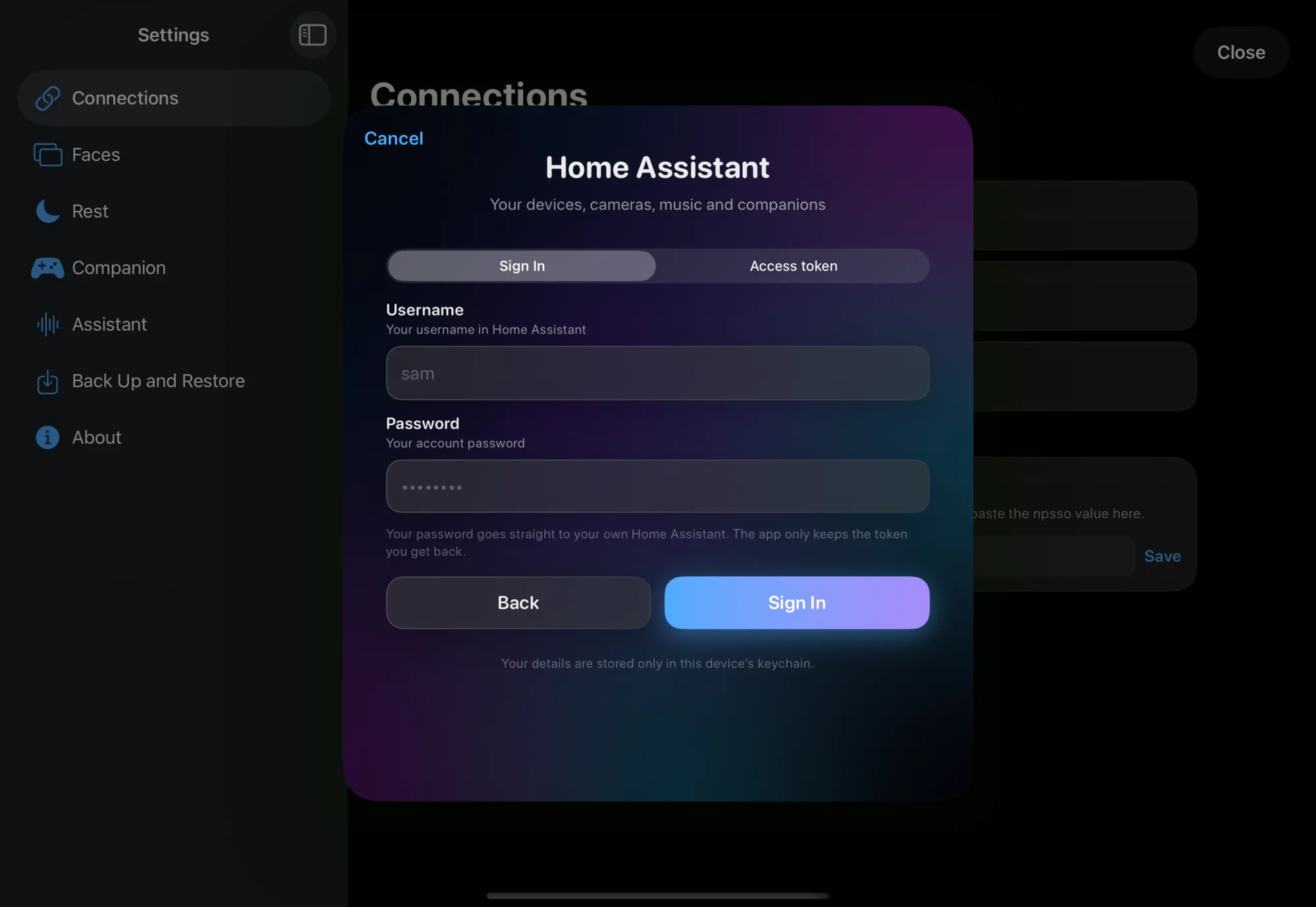
Tap Sign In.
At Choose Your Dashboard, pick the Home Assistant dashboard the app uses, and tap Continue. You can change this later in Settings.
If iPadOS asks to find devices on your local network, allow it. Without that permission the app can't reach your internal address.
Route 1: Log in
- Enter your Home Assistant Username and Password.
- Tap Sign In.
Your password goes straight to your own Home Assistant. The app only keeps the token it gets back, in the iPad's keychain.
Route 2: Access token
- Open Home Assistant in a browser and go to your profile.
- Open the Security tab and create a long-lived access token at the bottom.
- Copy the token. Home Assistant shows it only once.
- Paste it in instnt hub at Long-Lived Access Token.
- Tap Sign In.
Check
- You see Connected with your server's name.
- In Settings › Connections, Home Assistant shows a green dot and "Connected · …".
- Below it, the Home Assistant card shows Internal, External and Active: the address in use now.
- In Settings › Connections › What Works, Connection to Home Assistant has a green check.
Not working?
Enter an internal or an external address.
Check the address. Without http:// or https://, the app adds http://
itself.
The address can't be reached or the token is wrong. Tap Back, check the address and try again. At home: is the iPad on the same network as Home Assistant, and was the app allowed to use the local network?
Turn it on in the iPadOS Settings app, under instnt hub.
Use a Access token.
Home Assistant only gives the room layout to accounts with administrator rights. Your devices work, but without a room. The app doesn't say so yet. To see the rooms, log in with an administrator account.
Away from Home in What Works then shows a dotted circle. Enter an external address (Home Assistant Cloud or your own domain).
In Settings › Connections, tap the three dots next to Home Assistant and choose Reconnect or Disconnect. Disconnecting erases the address and login from this iPad; faces, widgets and the PSN token stay.