Swipe down from the top of a face: the assistant stretches out of the edge like a drop and becomes a bubble. Or put a fixed bubble on your faces and tap it. Then say what you want: "set the living room lights to half" or "what's on the calendar tomorrow?". The question goes to the voice assistant in Home Assistant, and the answer appears large on screen and comes out of the iPad's speaker.
Which assistant answers, and whether that is a language model (OpenAI, Gemini, Claude, a local model) or Home Assistant's own agent, you set up in Home Assistant. The app has no keys for those services; it talks to your own Home Assistant. If your iPad has Apple Intelligence, the language model on the iPad itself can answer too: choose On the iPad under Who answers. Nothing leaves the house then.
Steps: in Home Assistant
- Create an assistant: Settings › Voice assistants › Add assistant. Pick a conversation agent (Home Assistant's own agent, or a language model you added as an integration).
- Per assistant, decide whether it may control devices, and which: it can only switch entities that are exposed to Assist.
- If you want Home Assistant to listen and speak, add speech-to-text and text-to-speech (for example Whisper and Piper as add-ons, or Home Assistant Cloud). Not needed if the iPad does that; see below.
Steps: in the app
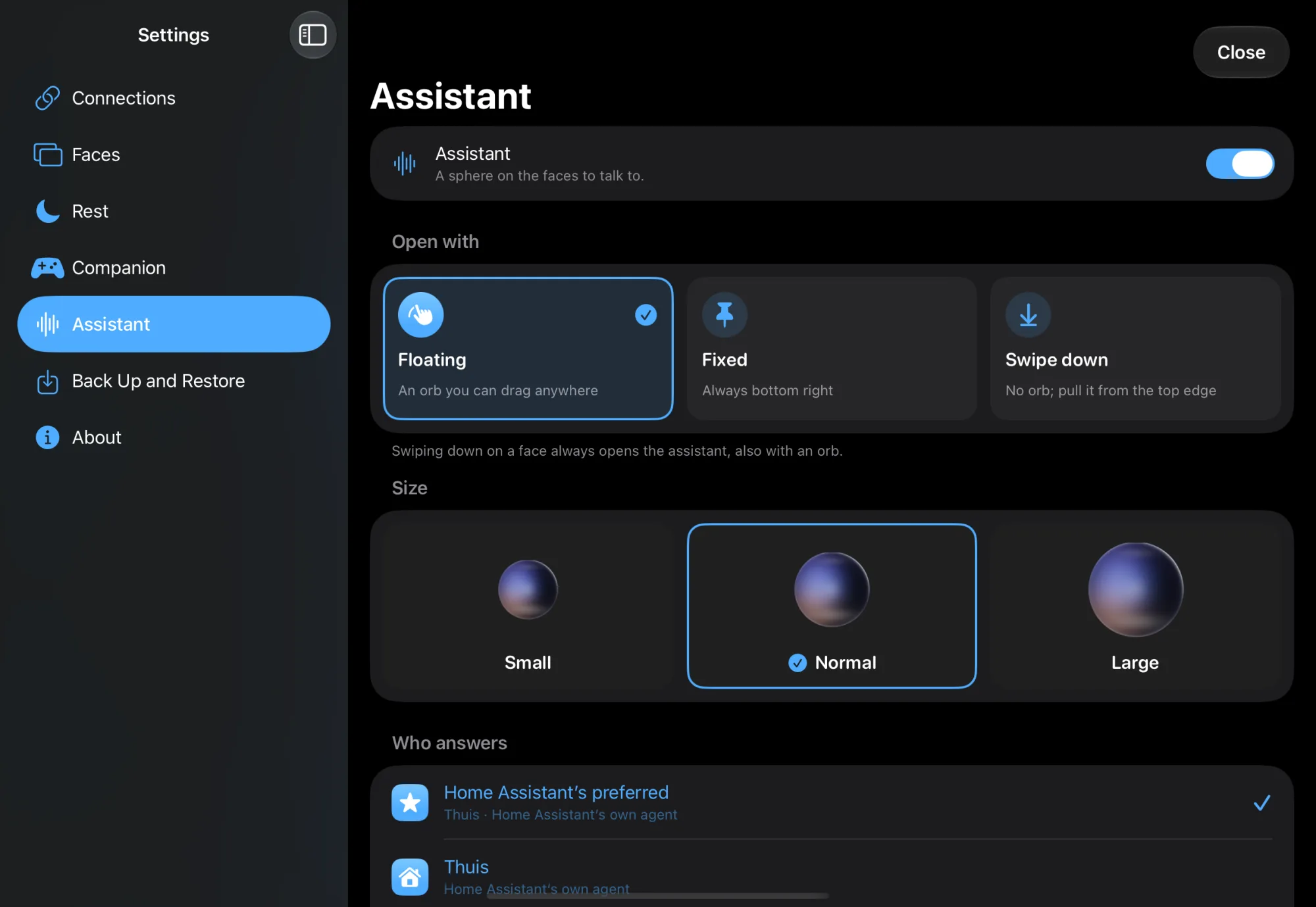
- Open Settings › Assistant and turn on the Assistant switch. By default it is off: no bubble, and nothing listens.
- Under Open with choose Floating (a bubble you drag anywhere), Fixed (always at the bottom right) or Swipe down (no bubble; you pull it from the top edge). Swiping down always works, also with a bubble.
- Under Size choose how big the bubble is.
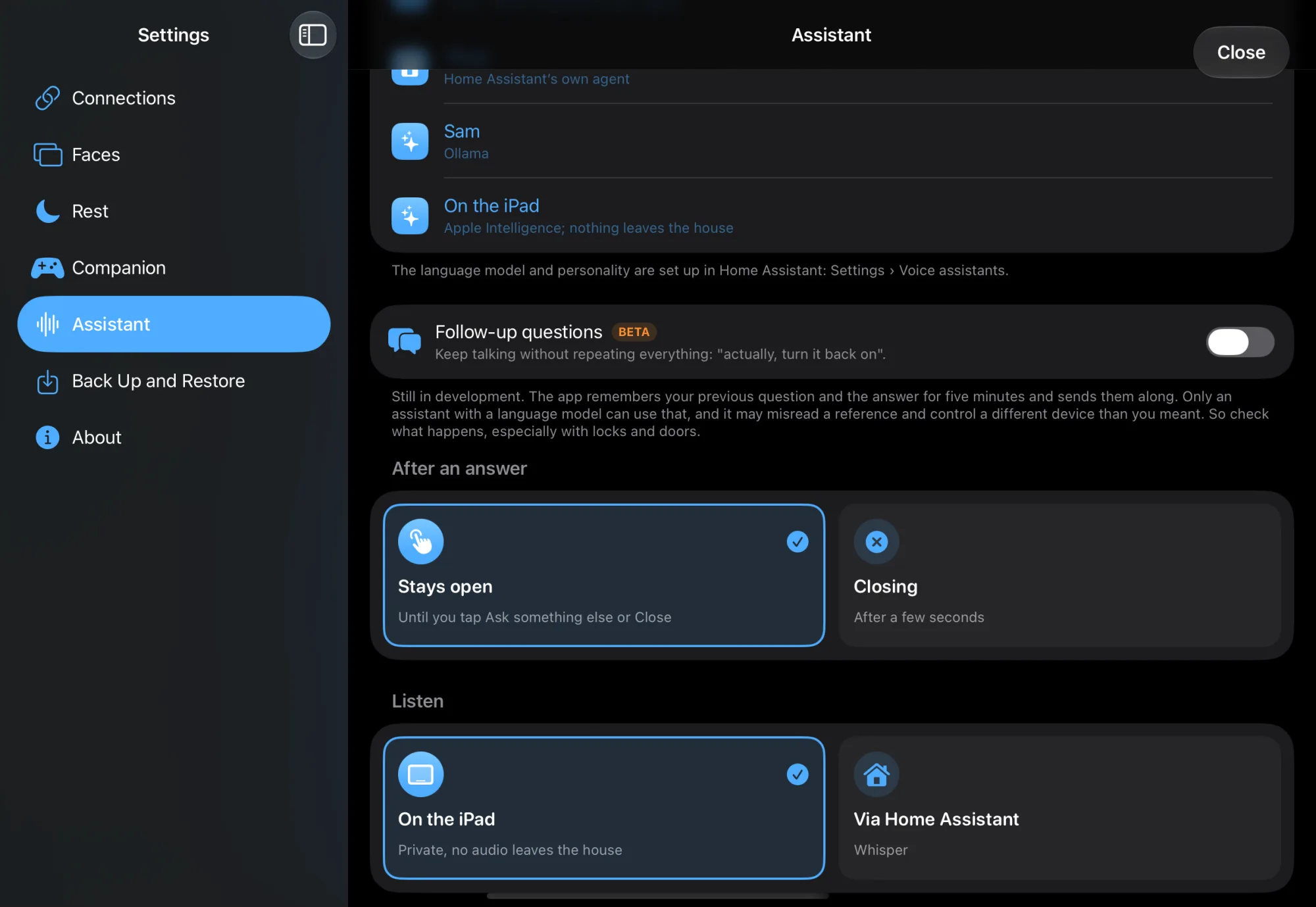
- Under Who answers pick an assistant from Home Assistant, leave it on Home Assistant’s preferred, or choose On the iPad (Apple Intelligence; needs iPadOS 26 and an iPad with M1 or A17 Pro or later).
- Under Listen choose who turns your voice into text: On the iPad or Via Home Assistant.
- Under Voice choose who speaks the answer: On the iPad, Via Home Assistant or No voice (text on screen only). With an iPad voice you pick which one below, and can play a sample.
- At the bottom is Follow-up questions (beta), off by default. On: the app remembers your previous question and the answer for five minutes and sends them along, so "and the kitchen too" works. That only works with an assistant that has a language model; Home Assistant's own agent does not understand such references.
How you talk
- Swipe down from the top of the face. A drop stretches out of the edge with your finger; pull far enough and it snaps loose and becomes the bubble. Let go earlier and it pulls back. With a bubble on your faces you can also tap it. The bubble listens; what you say appears below it.
- Pause when you are done. The bubble shrinks while the assistant thinks.
- The answer appears on a card, and is spoken.
- With Follow-up questions on, the assistant then keeps listening for a moment, so you can adjust ("turn it back on after all"). If you say nothing, it closes. With them off, every question stands on its own.
- Tap Ask something else to continue. Done: tap anywhere on the screen, tap Close, or push the bubble back up into the edge.
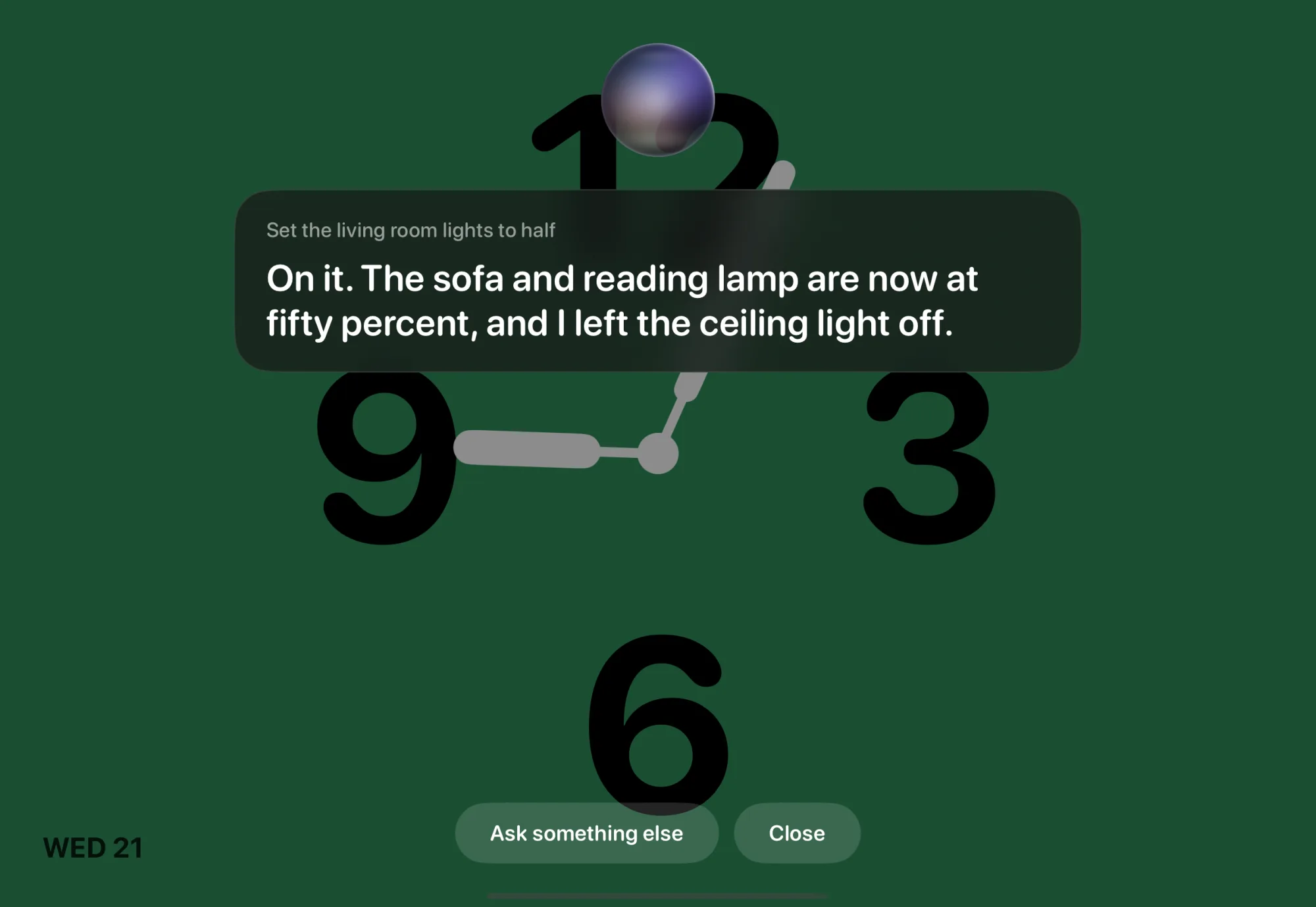
With Floating you drag the bubble wherever you like; when you let go it snaps to the nearest side. The bubble stays out of the way over the gallery, edit mode, the settings and the rest face.
Check
- Tap the bubble and ask "which lights are on?". The answer appears on the card and, with a voice, comes out of the speaker.
- An orange triangle next to Via Home Assistant under Listen or Voice means the chosen assistant in Home Assistant has no speech-to-text or text-to-speech. Choose On the iPad, or add it in Home Assistant.
Not working?
Check Settings › Assistant: by default the switch is off, and with Swipe down there is no bubble on purpose. The bubble only exists on the iPad, and not over the gallery, edit mode or the settings.
Turn it on in the iPadOS Settings app, under instnt hub.
iPadOS speech recognition does not know your assistant's language. Under Listen choose Via Home Assistant.
The assistant waits eight seconds for your voice. Tap again and start talking right away.
Your Home Assistant has no voice assistant, or an old version. Create one under Settings › Voice assistants.
Which devices it may control is set in Home Assistant: per entity, Expose to Assist. A language model without "Assist" (talk only) cannot switch anything.
By default the iPad only has the basic voices. Download a better one in the iPadOS Settings app › Accessibility › Spoken Content › Voices, then pick it under Voice.