A face is one screen: photos, modular, home, controls, music, calendar, weather, timer, clock, flow, cameras or a companion. You swipe sideways between them. The same kind can be in the row more than once, for example two home faces with different widgets.
Gestures
| Gesture | What happens |
|---|---|
| Swipe sideways | Previous or next face |
| Swipe up from the bottom edge | The overview of your faces opens |
| Pinch two fingers together | Also the overview; keep pinching for the grid of all faces |
| Hold the middle of the bottom edge and drag sideways | Scroll quickly through all faces |
| Long-press a face | Home, modular, photos and companion: edit mode. Other faces: the customize screen |
Steps: choosing and adding a face
- Swipe up from the bottom edge, or pinch with two fingers. The overview opens: your faces as cards side by side, each with its name above it. Pinching pauses briefly at the overview; keep pinching and you see all faces in a grid.
- Swipe sideways and tap the face you want.
- To add a face, tap + next to Customize, or swipe to the card Add Face at the end.
- Tap the kind of face. It is placed after the face that was in the middle.
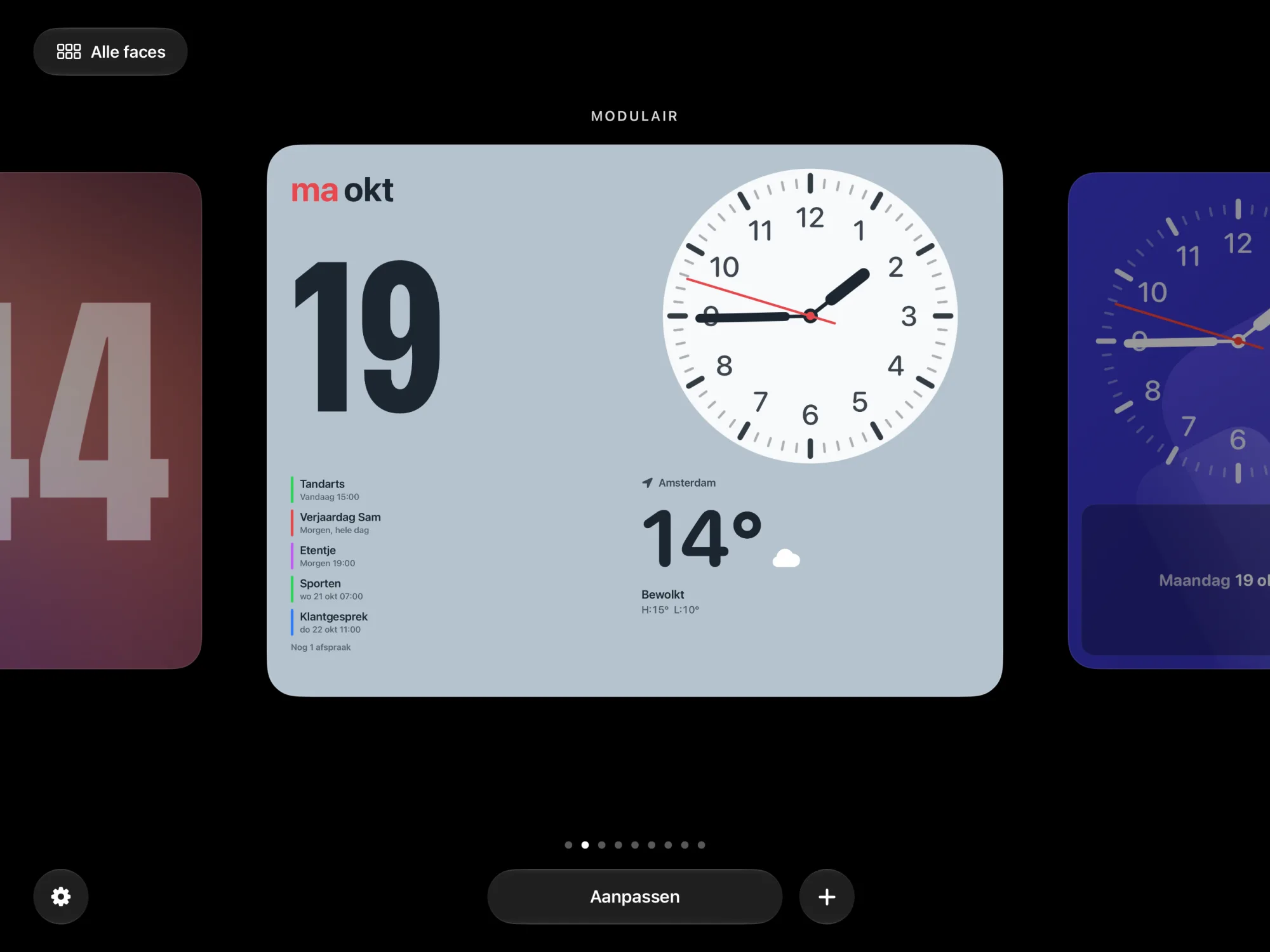
Steps: ordering and hiding
- Keep pinching until the grid of all faces, or tap All Faces at the top left of the overview. Hidden faces are in it too.
- Tap Edit. The faces start to wiggle. Holding a face does the same.
- Drag a face to another spot.
- Tap the checkmark below a face to hide it or show it again.
- Tap Done, then Back for the overview, and tap the face you want to see.
Steps: customising a face
- Open the overview and put the face in the middle.
- Tap Customize.
- Choose a tab at the top. Which tabs there are depends on the face. Every face has COLOR or THEME, and OPTIONS; the modular face also has FONT and WIDGETS.
- Choose a style, font or option on the right. The face shows it right away.
- Tap the checkmark to save, or the cross to undo everything.
Steps: widgets on the home face
- Long-press the home face. The face enters edit mode.
- Tap + at the top right to add a widget. If the grid is full, remove a widget first or make one smaller: a new widget that doesn't fit drops off the end, without a message.
- Choose a source on the left (for example Clock, Weather or Lights). Swipe sideways on the right to pick a variant and tap Add Widget. You set the size afterwards with the corner (step 5).
- Tap a widget to open its settings, such as the device, the look or a custom name.
- Drag the glass corner at the bottom right to make the widget small, wide, tall or large.
- Tap − to remove a widget.
- Tap Done. Cancel undoes everything.
The small gear next to Done opens the app's Settings.
Steps: widgets on the modular face
- Long-press the modular face.
- Tap a slot. That widget's settings open.
- Tap Choose Another Widget to put a different widget in the slot.
- Tap Done.
Check
- The overview shows your faces in the order you set in the grid with Edit.
- After Done, the widgets are in the place and size you chose.
Not working?
No devices, music or cameras in the widget gallery
Those only appear with a source. Devices come from Home Assistant, HomeKit or the demo; music and cameras only from Home Assistant.
The music or companion face isn't in the row
The music face is only there with Home Assistant. The PS5 companion only once Home Assistant reports a PlayStation; see PS5 companion.
A widget no longer fits
Whatever doesn't fit on the grid drops off at the end. Choose a smaller size, or more slots under OPTIONS › Grid, from 3 × 3 to 5 × 4.